
ECU Programmer Software Installation: Windows and Driver Compatibility Guide
A reliable ECU programming workstation requires more than a compatible programming device. The computer, software installation, USB drivers, operating system configuration and communication interfaces must also work together correctly.
When an ECU programmer is not recognized, software fails to start or communication stops unexpectedly, the problem is not always caused by the ECU itself. An incomplete installation, incompatible driver, restricted software permission or unstable computer configuration can also affect the programming workflow.
This guide explains how automotive technicians can prepare a Windows computer for ECU programming, check software and driver compatibility, configure essential system settings and troubleshoot common installation problems.
Why Correct ECU Programmer Software Installation Matters
ECU programming software communicates with the programming interface and provides access to supported ECU identification, reading, writing and other operations.
If the software cannot communicate correctly with the interface, the technician may be unable to identify the ECU or start the selected programming procedure.
A properly prepared workstation helps technicians establish a consistent starting point before connecting a control unit.
Common problems associated with workstation preparation include:
- The programming interface is not recognized by Windows.
- The USB driver is missing or incorrectly installed.
- The software cannot detect the connected device.
- The software fails to start or displays an error.
- Windows security settings restrict software operation.
- The computer enters sleep mode during a programming session.
- Another application interferes with the programming interface.
These symptoms can have different causes. A systematic installation and verification process makes troubleshooting more efficient.
Step 1: Check the Official Software Requirements
Before installing an ECU programming application, review the instructions supplied for the exact programming tool.
Do not assume that every ECU programmer uses the same Windows version, driver package or installation procedure.
Check the following information:
- Supported Windows versions
- Required system architecture
- Required USB drivers
- Supported programming interface
- Installation sequence
- Administrator permission requirements
- Internet connection requirements
- Available software version
If the manufacturer specifies a particular operating system or driver version, follow those requirements rather than installing a different package without confirmation.
Step 2: Prepare a Suitable Windows Computer
A dedicated computer can make automotive programming work easier to manage, particularly when the workshop uses multiple programming tools with different software requirements.
Before installation, check that the computer has sufficient storage space, stable USB connectivity and a supported operating system.
Recommended preparation steps include:
- Install available Windows updates that are compatible with the programming software.
- Restart the computer before beginning the installation if required.
- Close unnecessary applications.
- Check available storage space.
- Confirm that the USB ports work correctly.
- Use a stable power source for the computer.
- Keep the installation files and relevant documentation accessible.
For older programming applications, verify operating system compatibility before making major system changes. A Windows update or security configuration change can sometimes affect legacy software or drivers.
Step 3: Download Software From a Trusted Source
Use the official software source or the download channel provided by the authorized supplier of the programming tool.
Avoid unknown download websites, modified installers and unofficial driver packages. These files may contain incompatible software, unwanted applications or security risks.
Before opening an installer, check:
- The software name
- The intended programming tool
- The version number
- The supported operating system
- The installation instructions
- The source of the download
If a file is supplied as a compressed archive, extract it according to the instructions before starting the installation.
Do not rename files or remove installation components unless the software provider explicitly instructs you to do so.
Step 4: Install the Software in the Correct Order
Some ECU programming packages install the main application and drivers together. Other systems require the driver and application to be installed separately.
The correct order depends on the specific tool.
A typical installation workflow is:
- Read the installation instructions.
- Close unrelated applications.
- Run the supplied installer as instructed.
- Approve legitimate Windows permission prompts.
- Install the required driver package.
- Restart Windows if requested.
- Connect the programming interface at the recommended stage.
- Launch the software and check device recognition.
Do not connect the device early if the manufacturer instructs you to install the driver first. Similarly, do not delay connecting it if the installation procedure specifically requires the device to be connected during driver setup.
Step 5: Verify the USB Driver
The USB driver allows Windows to communicate with the programming interface through the computer's USB subsystem.
If the driver is missing, damaged or incompatible, the programming application may fail to recognize the device.
On Windows, Device Manager can help determine whether the connected interface is detected.
To inspect the device:
- Connect the programming interface according to the manufacturer's instructions.
- Open Device Manager.
- Check the relevant USB, device or interface categories.
- Look for the expected device name.
- Check whether Windows displays a warning symbol.
- Review the device status and any reported error.
The exact category and device name depend on the interface and its driver.
If Windows reports an error, use the driver supplied or recommended for the exact programming tool. Avoid installing random drivers simply because their names appear similar.
Step 6: Check Device Recognition in the Programming Software
A device appearing in Device Manager does not necessarily mean that the programming application can use it correctly.
After confirming the driver, open the programming software and check whether the interface is recognized.
Verify:
- The software starts without an installation error.
- The correct programming interface is selected.
- The device status is displayed as expected.
- The application does not report a missing driver.
- The software version is compatible with the installed interface.
If the interface is visible in Windows but not in the programming software, investigate software compatibility, device selection, driver requirements and any instructions specific to the tool.
Step 7: Check Windows Security Restrictions
Windows security features can restrict certain applications or drivers, particularly when a package is unsigned, outdated or not recognized.
Before changing any security settings, verify the software source and confirm that the installation package is legitimate.
Check whether:
- Windows Security has reported a threat.
- The application has been blocked by a security policy.
- The driver is compatible with the operating system.
- The installer requires administrator permission.
- An organization-managed security policy prevents installation.
Do not automatically disable antivirus software, Windows Defender or driver-signature enforcement to make an installer work.
If a legitimate driver is blocked, consult the software provider for a supported, compatible version or an approved installation procedure.
Step 8: Review Administrator Permissions
Some installers need administrator privileges to add drivers, create system components or register software services.
If installation fails because of insufficient permissions, follow the manufacturer's instructions and use an authorized Windows account.
Running the application as an administrator may help diagnose certain permission problems, but it should not be treated as a universal fix.
If the computer belongs to a business or organization, consult the system administrator before changing managed security settings.
Step 9: Configure Windows Power Settings
Power management can affect USB devices and computer availability during a long programming session.
If the computer enters sleep mode or a USB connection becomes unavailable, communication with the programming interface may be interrupted.
Before starting a programming job:
- Connect the laptop to a suitable power adapter.
- Review the Windows sleep settings.
- Prevent automatic sleep during an authorized programming session when appropriate.
- Check whether the computer uses aggressive USB power management.
- Follow the programming tool manufacturer's recommendations.
Do not change unrelated power settings unnecessarily. The objective is to maintain a stable workstation while preserving normal electrical and thermal safety.
Step 10: Choose a Reliable USB Connection
The USB connection is an important communication link between the computer and the programming interface.
A loose connector, damaged cable, unsuitable adapter or unstable USB hub can cause intermittent recognition or communication failures.
For initial testing:
- Use a known-good USB cable when the cable is replaceable.
- Connect directly to a supported computer USB port when practical.
- Avoid unnecessary adapters and extension cables.
- Check the connector for visible damage.
- Keep the cable away from areas where it can be pulled or crushed.
- Do not move the cable during an active programming operation.
If the interface works through one port but not another, record the difference and investigate the port, cable or driver configuration before proceeding.
Step 11: Avoid Conflicts Between Programming Applications
Some programming interfaces depend on specific drivers, background services or application components.
When several tools are installed on one computer, software packages may use different driver versions or competing services.
If a previously working interface stops being recognized after another application is installed, review the recent changes.
Useful troubleshooting steps include:
- Close other ECU programming applications.
- Restart the computer.
- Reconnect the interface according to the correct sequence.
- Check the installed driver version.
- Review any error messages.
- Consult the relevant software documentation before replacing drivers.
Do not uninstall unrelated programming software without first checking whether another application depends on its components.
Step 12: Check Software Version Compatibility
Software updates can add support for new devices, correct known issues or change driver requirements. However, a newer version should not automatically be assumed to be compatible with every programming interface or computer configuration.
Before updating, check:
- The current software version
- The version recommended for the interface
- Supported Windows versions
- Driver compatibility
- Update instructions
- Any required firmware changes
Use only the update procedure provided for the exact tool. Do not interrupt an update that is actively changing device firmware or software components.
Step 13: Test the Installation Before Connecting an ECU
After installation, verify the computer-to-interface connection before beginning an actual programming job.
Follow the tool's approved device recognition or diagnostic procedure, if available.
A useful pre-job checklist includes:
- Windows starts normally.
- The programming software opens successfully.
- The expected interface is recognized.
- The required driver is installed.
- No unresolved device warning is present.
- The correct software version is installed.
- The USB connection is stable.
- The computer power configuration is suitable.
Do not use an actual ECU Write operation merely to test whether the software installation works. Use an approved device check or supported identification procedure instead.
Common ECU Programmer Software Problems
The Software Does Not Open
Check operating system compatibility, installation completeness, permission requirements and any displayed error message. Restart Windows if the installation instructions require it.
The Programming Interface Is Not Detected
Check the USB cable, computer port, driver installation and device status in Device Manager. Then confirm that the software supports the connected interface.
Windows Reports an Unknown Device
Verify that the correct driver package is installed. If the device remains unknown, check the manufacturer's documentation and confirm that the interface itself is functioning correctly.
The Software Reports a Driver Error
Record the complete error message and verify the required driver version. Avoid installing unrelated driver packages or making unsupported changes to Windows security settings.
The Device Disconnects Intermittently
Check the cable, USB port, connector condition, power management and physical cable routing. Test one variable at a time to identify the source of the interruption.
The Software Worked Before an Update but Now Fails
Record the previous and current software versions, review the update instructions and check whether driver or operating system compatibility changed. Follow the provider's supported recovery procedure.
Keep a Record of the Workstation Configuration
For workshops that operate multiple programming tools, recording the computer configuration can make future troubleshooting easier.
Useful information includes:
- Computer model
- Windows version
- Programming software version
- Driver version
- Programming interface model
- USB port used
- Installation date
- Recent software updates
- Known installation issues
This information helps technicians identify whether a problem started after a software update, driver change or hardware replacement.
Recommended Installation Checklist
- Confirm the exact programming tool.
- Review the official installation requirements.
- Verify the Windows version.
- Download the software from a trusted source.
- Follow the recommended installation sequence.
- Install the correct USB driver.
- Restart Windows if required.
- Check the interface in Device Manager.
- Open the programming software.
- Confirm that the interface is recognized.
- Review Windows security warnings.
- Check computer power and sleep settings.
- Verify USB cable and port stability.
- Confirm software and driver compatibility.
- Run the approved device check.
- Record the final software configuration.
Choosing an ECU Programming Tool
Software compatibility should be considered when selecting an ECU programming tool for a professional workshop.
Before purchasing a device, review the supported ECU families, available programming methods, required software, operating system compatibility and technical support arrangements.
Do not assume that every tool supports the same operating systems or offers identical Read, Write and recovery functions.
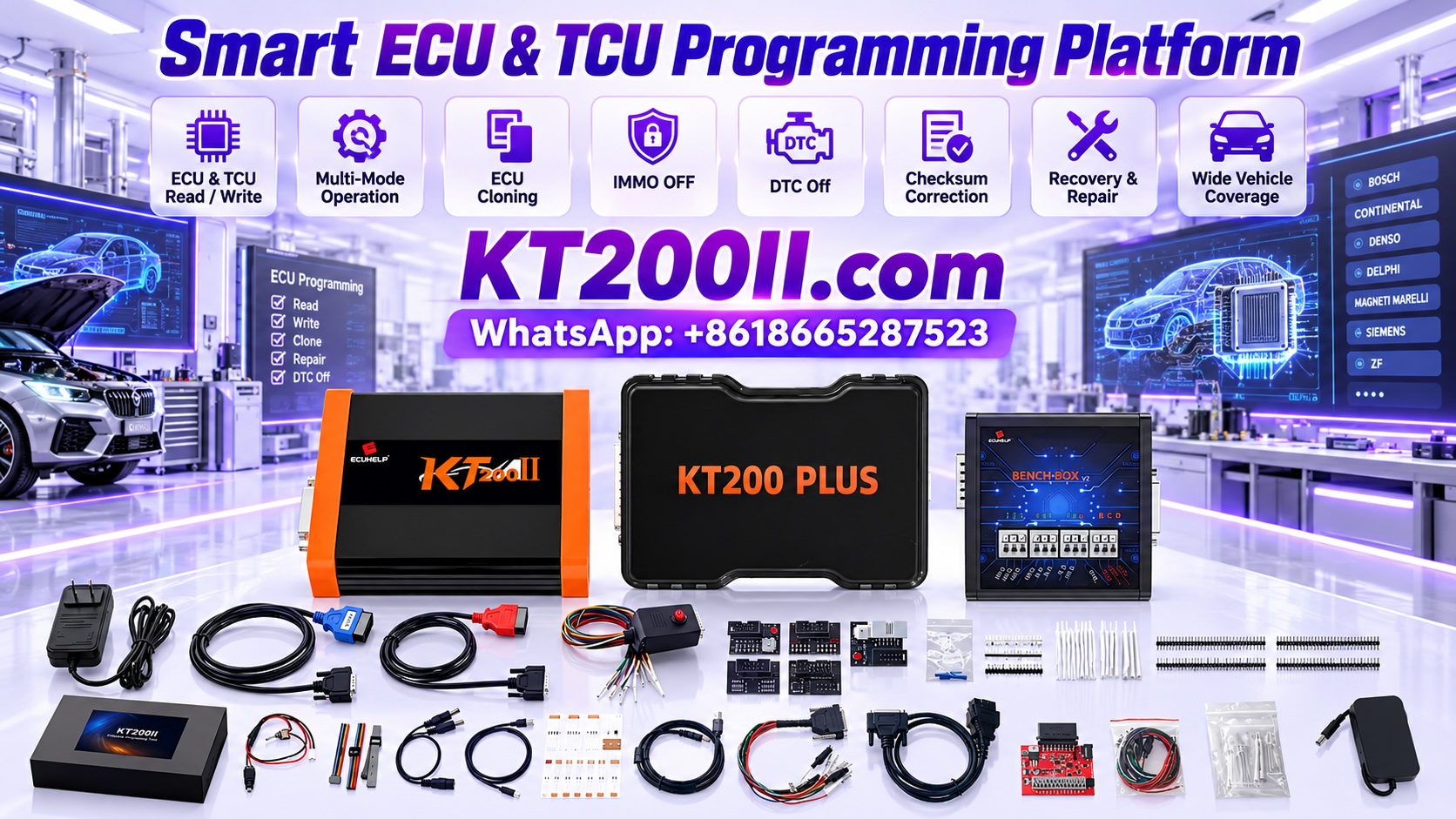
You can review the KTprog ECU Programming Tool to learn more about the product and evaluate whether it fits your intended automotive programming workflow.
Frequently Asked Questions
Why is my ECU programmer not recognized by Windows?
Possible causes include a missing driver, an incompatible driver version, a faulty USB cable, a problematic port or a device hardware issue. Check Device Manager and follow the installation instructions for the exact programming interface.
Should I install the driver before connecting the programmer?
It depends on the tool. Some manufacturers require the driver to be installed first, while others specify a different sequence. Follow the official instructions for the exact device.
Can antivirus software affect ECU programming software?
Security software can sometimes block an installer or application. Verify that the files are legitimate and consult the software provider before changing security settings.
Should I use a USB hub for ECU programming?
A direct connection to a supported computer port is a useful starting point for troubleshooting. If a hub is necessary, verify its compatibility and stability according to the programming tool manufacturer's recommendations.
Do I need to update ECU programming software regularly?
Updates may provide improvements or additional support, but every update should be checked for compatibility with the interface and operating system. Follow the official update procedure rather than installing an unverified version.
Can I test the installation by writing data to an ECU?
No. Use the approved device recognition or diagnostic procedure first. An actual Write operation should only be performed when the target ECU, file and programming procedure have been verified.
Conclusion
Reliable ECU programmer software installation depends on the compatibility of the operating system, application, drivers, programming interface and computer configuration.
Technicians should begin with the official installation requirements, use trusted software sources, verify driver recognition and test the computer-to-interface connection before starting an ECU programming job.
When installation problems occur, a systematic approach is more effective than randomly changing drivers, disabling security features or reinstalling unrelated software. Recording the workstation configuration also makes recurring problems easier to diagnose.
By establishing a consistent installation and verification process, automotive workshops can maintain a more reliable programming environment for supported ECU reading, writing, repair and other electronic service operations.
Professional use notice: Always follow the programming tool manufacturer's installation instructions, operating system requirements and electrical safety procedures. Available ECU programming functions depend on the exact tool, software version, target ECU and supported programming protocol.